Q&A
Organize client questions beyond WhatsApp
Last reviewed: · MentorDrop
When course questions arrive through private messages, group chats and lesson comments, it is hard to see what still needs an answer. MentorDrop brings questions into sessions and gives your team a shared inbox. This guide shows one way to organize that work while keeping your courses and payments where they are.
Before you start
You need a verified account, administrator access and a space for the course. In our fictional Launchpad Mentoring example, Emma Wilson helps clients design their first service. Maya Taylor sends the test submissions. Watch the journey in the 50-second walkthrough.
1. Decide where each conversation belongs
Keep introductions and client discussions in your community. Use MentorDrop for questions that need an answer from your team. You can explain the change with a simple message:
For course questions, use the “Implementation questions” session. Include your goal, what you have tried and where you are stuck. Group conversations continue in our usual channel.
Choose a response commitment your team can meet. Explain when submissions can be sent, when you review the inbox and whether follow-up questions are allowed.
2. Prepare a session that is easy to understand
- Open the course space in Studio and create a session.
- Give it a specific name: “Implementation questions” explains its purpose better than “General”.
- Under Form, add instructions and the fields you need. For spoken questions, add a voice field: reply audio settings do not create one automatically.
- Under Session, configure the schedule, activate the session and Accept submissions.
- The admins and the space's mentors answer (add mentors when you edit the space). Under Answers, review limits, visibility and follow-up settings.
- Save. Give your test account access to the space from Users.
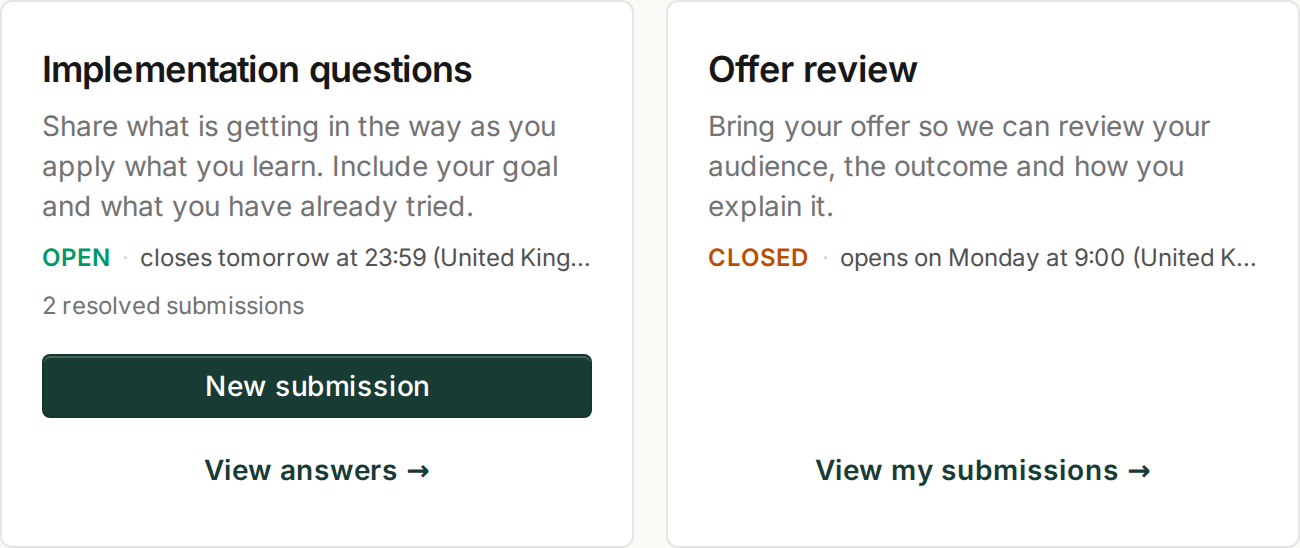
Sessions separate the purpose and schedule of different kinds of questions.
3. Put access where it is needed
In Studio › Spaces, open the space and select Share. Copy its widget to place beside your lessons and its link for the welcome message. The session will be inside the space. For a private space, the link alone does not grant access. In an open space, new clients can join with their name and email. See spaces and access for expiry, purchases and removals.
This workflow does not automatically import your WhatsApp history. Start by directing new questions to the session. If an older conversation is worth keeping, prepare an example without personal information and check that you can share it.
4. Work through the inbox together
In Studio › Q&A › Submissions, filter by space and session, open a case and reply by text or voice. Respect the case assignment so two mentors do not work on the same submission.
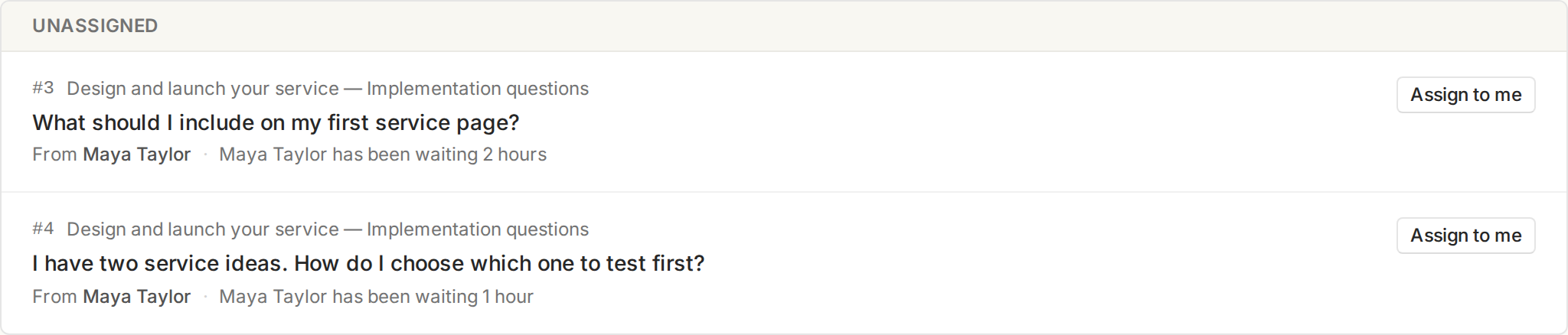
A shared inbox lets the team review submissions that need attention.
A useful answer explains the next step and why it helps. Check for personal information before allowing the group to read a case. Public answers are for whoever has access to the space, not the whole internet.
Configure the form and reply options separately
Under Form, ask only for the context needed to answer: choose short or long text, dropdown, checkboxes, number, date, link, file upload, voice recording or video, mark essential ones as required and arrange them in a useful order. After changing it, open it with your test account to see how it looks.
Under Answers, configure what senders and mentors can include in later messages separately: voice, camera or screen video where allowed, photos and files. Recording and transcription are separate choices. A text-only form can still lead to a thread with mentor recordings.
Keep continuity across the team
Use the case assignment to show who is working on it; release or reassign it when another mentor should take over. If whoever holds a pending case writes nothing in it within 3 days of getting it, it goes back to the shared queue on its own and nobody is notified; that time is fixed. The session's Mentors tab shows who answers, the answer time the form promises and how many submissions each mentor may hold at once. Check Q&A › Activity to review the team's work.
Questions about Library pieces and worksheets
Two things from Library also reach this inbox, with no session to create:
- Questions on each piece, in a library's Settings. With Automatic answer and, if that is not enough, the team, the client first gets an automatic answer built from the course and your mentors' answers; if it is not enough, they press Send the question to the mentors, and when nothing is found (or the automatic answer fails) it is sent on its own. With Automatic answer only, no question reaches the team. The limits and follow-ups of those questions are set in the same library. In the inbox they sit in the session Content · space name.
- Worksheets. Each worksheet a client sends arrives as a private submission named after the worksheet, in the session Worksheets · space name. Answer it, or press Return and write the reason.
Like any submission, they go first to the client's designated mentor in that space.
The client profile holds an internal Team note, which the client never sees, and their Designated mentor in each space. See spaces and client profiles.
Designated mentor
A client can have a different Designated mentor in each space: for example, Lucy in "Knee" and Anna in "Physio Club". An admin chooses it on the Client access tab of their profile, or for several clients at once from Users: filter by the space, select the clients and click Set mentor, up to 25 at a time. With a space filtered, the list shows each client's designated mentor in that space. Only admins and that space's mentors can be chosen, and only for clients with access to it.
- Their new submissions in that space go straight to that person. As soon as the client submits, the case is assigned to them and they get an email: "You are the designated mentor of Maya Taylor, so their submission in Implementation questions was assigned to you." In spaces where they have no designated mentor, their submissions go to the shared queue.
- Only if they can take it. If they already hold that session's maximum of assigned submissions, the submission goes to the shared queue.
- Questions for a live, no. They stay in the live's queue and whoever presents it answers them.
- Earlier submissions stay put. Choosing or changing the mentor does not reassign submissions sent before.
- Left unanswered, it goes back to the queue. Like any assigned case: with no message from them within 3 days, it returns to the shared queue on its own and nobody is notified.
- The case can still move. An admin can take it over or assign it to someone else; the mentor can release it or hand it over.
- No access comes with it. Choosing a mentor gives them no access to any space and does not add them to its team. They can open that client's profile.
- If they leave the space's team, their clients in that space are left without a designated mentor. When you save the space without them, you are asked first: "If you take Anna Lopez off the team, 12 clients of this space are left without a designated mentor."
- If they leave your account's team, their clients are left without a designated mentor in every space. An admin who becomes a mentor stops being one in the spaces whose team does not include them.
- If the client's access ends, their designated mentor is kept and applies again when they renew.
- Duplicating a space does not copy it. The copy starts without clients; set the new edition's mentors from Users.
5. Check the complete journey
Open the link in another browser with the test account: sign in, make a submission, receive an answer and check what another account with access can see. A private submission must stay between whoever sent it and the team.
During the first week, review confusing instructions and recurring questions. Adjust the form and consider Knowledge Rooms once you have answers worth reusing. This example describes a workflow; it does not represent measured customer time savings.