Shared setup
Reuse mentor answers with Knowledge Rooms
Last reviewed: · MentorDrop
A Knowledge Room brings together answers from sessions you choose, and videos from libraries you choose, so another session can consult them as similar answers. It is not a chatbot trained on your courses: the provisional answers it feeds are built from answers your team already gave and from transcribed videos, and access to a mentor follows each session's settings.
The same room also serves other tools: a Qualify flow can personalize its response from it (on the flow's Outcome tab), and Articles can write articles from it. Rooms live in Studio › Knowledge, which lists what uses each one.
Understand the two decisions
| Decision | Where you configure it | What it means |
|---|---|---|
| Which sessions contribute answers | Knowledge | These are the room's sources. A session can contribute to several rooms. |
| Which libraries contribute videos | Knowledge | Similar answers can cite their videos, with a link to the minute, and Qualify uses what they teach without naming them. Articles writes from them too. |
| Which room a session searches | Session › Answers | That session searches itself and the selected room's sources. It can consult at most one room. |
Creating a room does not make every session search it. It does not copy forms, schedules, clients or team assignments either.
Before you connect sessions
Review the source content. Eligible answers must belong to answered, non-private submissions in published sessions with public answers enabled. Search needs available, indexed content; saving the settings does not guarantee a match exists.
Connecting a room can let senders in the session that searches it read eligible answers from source sessions. Access to every source course is not needed to receive those shared answers. Check that you can share the content with the new group. Private submissions are excluded.
1. Create a room and choose its sources
As an administrator, open Studio › Knowledge and select New room.
- Enter an internal name. In Launchpad Mentoring, we use “Service answers”.
- Select “Implementation questions” as a source. It contains questions Emma Wilson has answered.
- Save the room.
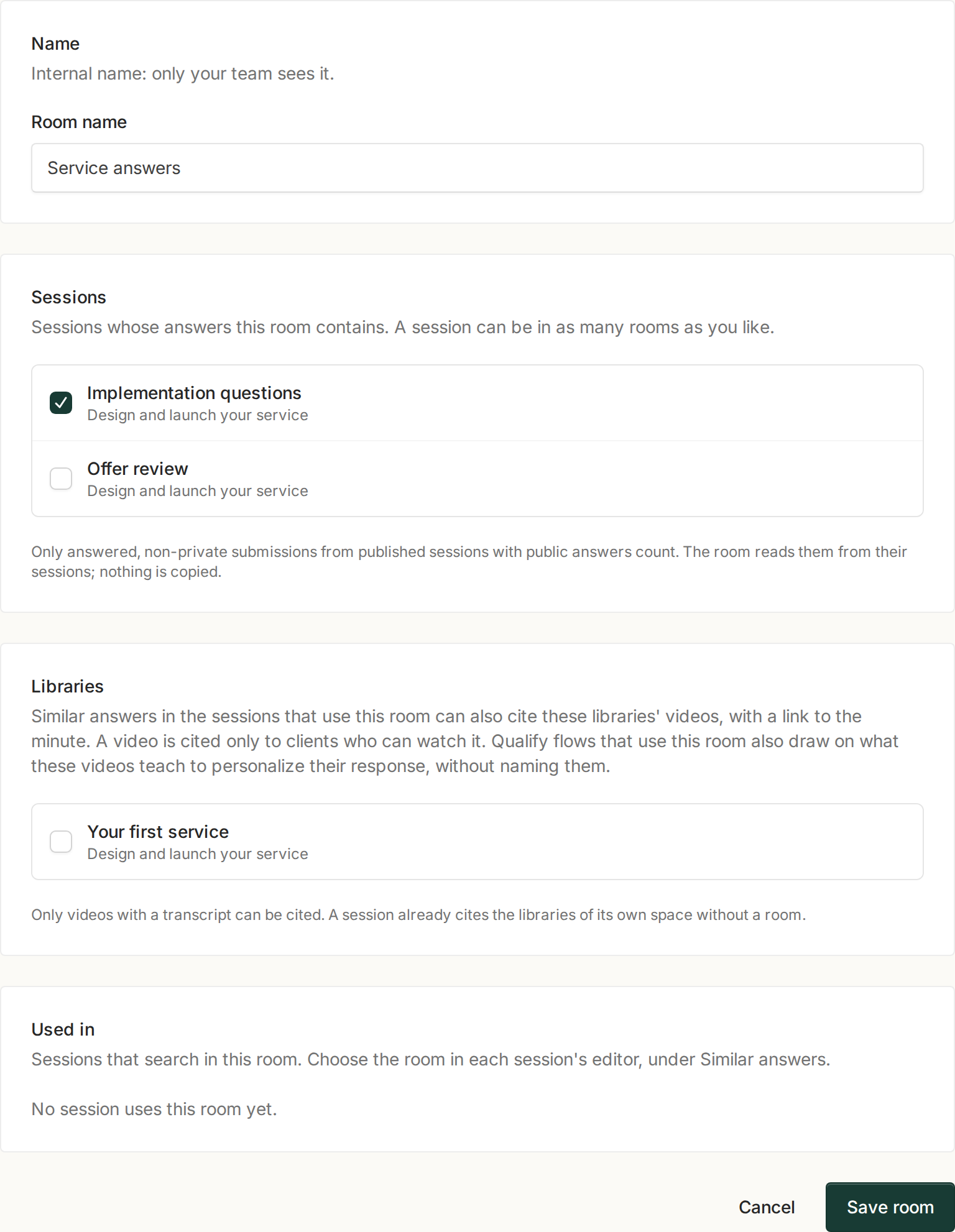
Fictional example: you explicitly select the sessions that contribute answers. The room name is internal.
Videos from libraries
A similar answer can also cite a chapter of a video: the source shows the video, its library and the minute, and opens the library at that moment. A video is cited only to a client who can watch it right now: they have access to a space that offers the library, the library is open for them and the video plays. Only videos with a transcript count.
A session already searches the videos of its own space's libraries; add a library to a room to make its videos available to the sessions that use the room.
A Qualify flow connected to the room also uses what its videos teach to personalize its response, only as information: the response never names or links the video, the course or the minute. Articles writes from both: the answers of the room's sessions and the videos of its libraries.
2. Connect the session that needs these answers
Open “Offer review” and select Answers.
- Under How submissions are answered, choose Show similar answers, then a mentor answers too.
- Under Search in, select A Knowledge Room.
- Choose “Service answers” and save the session.
If you choose Only a mentor answers, search controls are hidden. To search only the current session's answers, choose Only this session.
3. What happens after a match
The sender can read a useful answer while waiting. The submission still reaches the team and stays open until a mentor answers.
The provisional answer the sender sees is put together automatically from the room's answers, cites them and says so; it may contain errors, and a mentor can still be asked. If no answer in the room covers the submission, nothing is shown.
Check the result
Try it from an account with access to the session that searches the room. Ask a question related to a source answer, review what appears and check the path to a mentor. Also verify a private case so you know it is not being shared as a public source.
If an answer does not appear, check the sources, source-session publication and visibility, case status and destination-session settings. Then check processing and available credits under Billing. Correct configuration does not force two submissions to be considered similar.
Deleting a room makes sessions that searched it return to their own answers, and Qualify flows stop personalizing from it. Its articles stay as they are, but nothing new is written from it. It does not delete the original submissions or answers.
Use the same room in other tools
| Tool | Where to connect it | What it uses |
|---|---|---|
| Q&A | Session › Answers | Eligible answers for a provisional response while a mentor handles the case. |
| Qualify | Personalize this response, on the flow's Outcome tab | Relevant expertise (answers and videos) in the personalized response for approved applicants, without saying where it comes from; it does not change their assessment. |
| Articles | Write articles, choosing the room as the source | Eligible answers and videos grouped into topics and written as articles for your website. |
Select source sessions and libraries explicitly. Materials (such as a PDF) never enter a room, and a video enters only when its library is in the room and the video has a transcript. The source answers must contain enough relevant material; connecting a room alone does not create it.
See Qualify and Articles for their setup and publication steps.