Shared setup
Put MentorDrop on your platform
Last reviewed: · MentorDrop
You can embed a MentorDrop space in the website or platform you already use: Hotmart, Kajabi, Teachable, Thinkific, Moodle, WordPress, Circle or your own site. The space brings together the Q&A sessions, video libraries and events you have prepared for your clients. This guide explains how to get its widget, use its link and manage access.
Quick answer
- Share the whole space. It contains its Q&A sessions, video libraries and events; clients move between them inside the same widget.
- Open the space in Studio and select Share. Its widget code appears directly, with a preview.
- The space also has a link and QR code, ready to send in a message or place behind a button.
- Your clients get in with their email and a one-time code, through the link or widget, without creating another password.
- No migration. If you switch platforms, your submissions and answers move with you.
The space widget, link and QR code
| Method | When to use it |
|---|---|
| Widget | To display the space inside one of your pages. Copy its code into an HTML block. |
| Link and QR code | To send the space by email, link to it from a button or open it by scanning the QR code. The link opens the space on its own page. |
Share opens the widget setup directly. The link and QR code are available on the same page. Space access works the same way in both cases.
What you can share
The space is the entry point to your program: it contains its Q&A sessions, forms, answers, events and the video libraries you assign to it. Everything is used inside it, with the same access. When you share the space, clients find there what you have added.
Articles publishes articles on a page of your website and can use eligible answers as source material. Selling access goes through your account's buy links and Stripe's payment page: the embedded space shows no Buy access, so put the offer's buy link in its own button outside the widget.
| What you share | Where to get it | Access |
|---|---|---|
| Space | Spaces › Your space › Share | Private access or open entry, according to the space. |
| Video | Library › Content › The piece › Share | Its own public link and optional email form. |
| Event or open space's agenda | Events › The event › Share, or Share the agenda | Public or space access, according to the event. |
| Qualify interview | Qualify › The flow's Share action | Public applications while the flow is open. |
| Articles publication | Articles › Publications › Share | Published articles on your website. |
| Offer | Offers › Buy link | Stripe checkout; payment confirmation grants access. |
How to get the link or the code
In Studio, open Spaces, open the space you want to share and select Share:
- Copy the widget code shown for that space.
- Paste it into a page on your platform that supports HTML blocks with external scripts.
- If you need a link or QR code, copy it from the same page.
The preview as visitor shows the space inside a sample page, on desktop or mobile. You can read everything but write nothing: nothing is sent or saved.
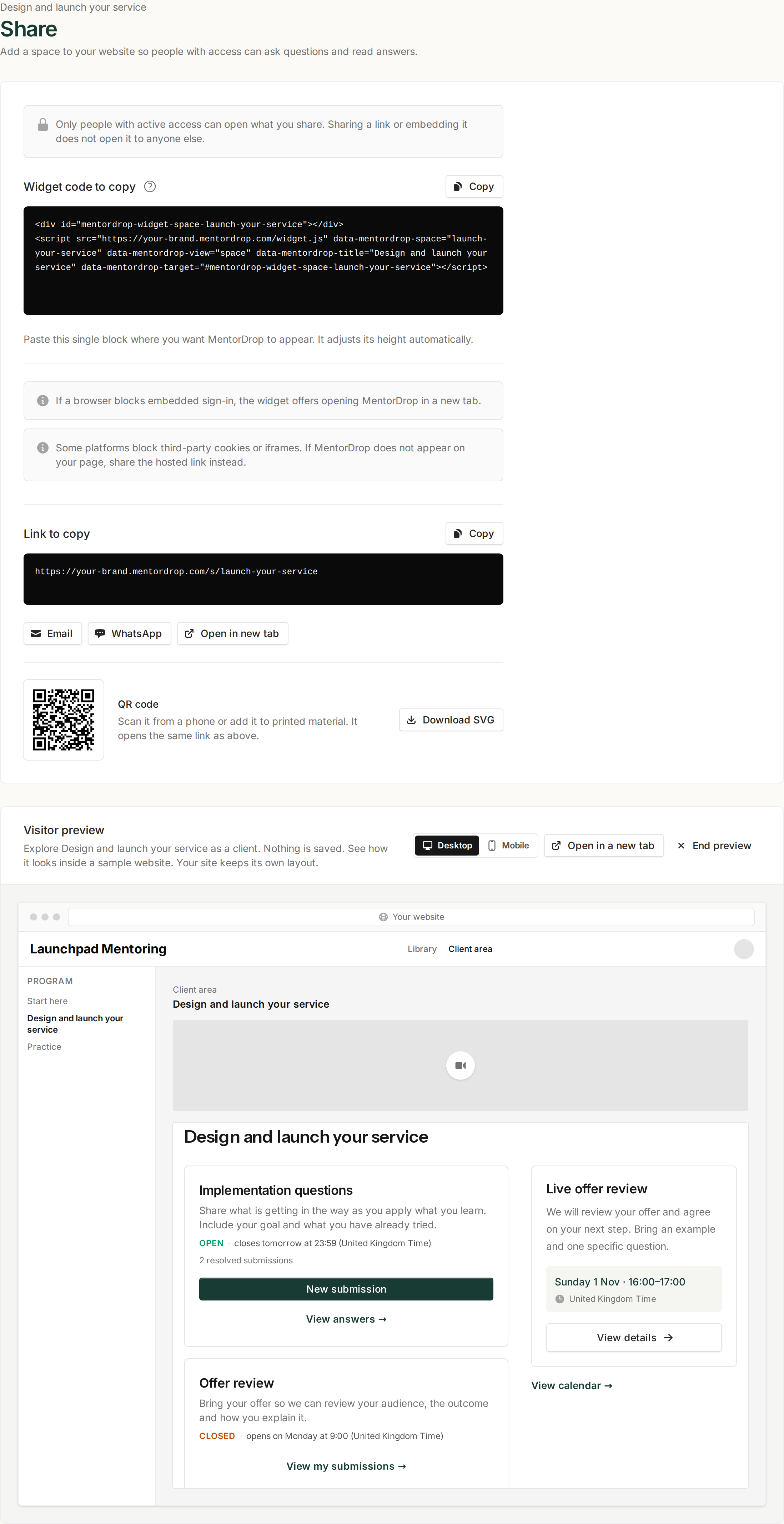
Launchpad Mentoring is a fictional example. Always copy the link or snippet generated in your account.
The widget
The snippet has two parts: a div where the widget mounts and a script that loads it. Copy it as is from Spaces › Your space › Share; this is a fictional example of its shape:
<div id="mentordrop-widget-programme"></div>
<script src="https://your-brand.mentordrop.com/widget.js"
        data-mentordrop-view="space"
        data-mentordrop-space="launch-your-service"
        data-mentordrop-title="Launch your service"
        data-mentordrop-target="#mentordrop-widget-programme"></script>
| Attribute | What it does |
|---|---|
data-mentordrop-view |
space for a space widget, video for a video's public page, agenda or event for events, flow for Qualify. |
data-mentordrop-space |
The space identifier, included in the code Studio generates. |
data-mentordrop-target |
The element on your page where the widget mounts. Each script needs its own target. |
data-mentordrop-title |
The accessible title of the frame. If you leave it out, "Space" or "Espacio" is used depending on your page's language. |
The widget creates an iframe inside the target element and inherits your page's font and font size so it does not look like a foreign element. The iframe includes allow="microphone", allowing it to request microphone access inside your site. Loading the widget does not activate the microphone. The browser asks for permission when someone starts recording, unless permission has already been granted. Reading answers or typing a submission does not require it. Recording must also be enabled for the session.
A video's public page
A Library video can also have a public page of its own, outside any space: a link for a recording, a free class or a lead magnet. It has none until you share it: open its piece in Library › Content, go to its Share tab and turn on Share with a link.
- Anyone with the link can watch it, even if the same video is also in a paid library. Studio says so before creating the link.
- Everything on the piece's page. In Library › Content, a piece with a link shows Public link with Copy link (With a public link lists only those). Its Share tab holds Share with a link, which turns the link on or off, and its settings (Email capture, Call to action and Available until), which save themselves as you change them; beside them, while the link works, Your link with its QR code, Link for a source and On your website, with the widget (
data-mentordrop-view="video"withdata-mentordrop-video, both already in the generated code) and a manual iframe. The numbers are on the Results tab, and Preview and View page in the header. The link's menu has Change URL (replaces the address: the old link, its QR code and every embed stop working) and Delete link (the video stays). - Where visits come from. Links that carry
utm_source(ads, email tools) are counted under that source. For a hand-made link, use Link for a source: it builds/v/{key}/{source}, e.g./v/kvk01ysm0muk/newsletter. In the widget code,data-mentordrop-source="newsletter"does the same; without it, the widget passes on your page's ownutm_source. Results show views and emails per source (up to 50 per video; later ones count under "Other sources"). - Available until. Optional date and time, in your account timezone. From then on the page says the recording is no longer available: no player and no email form. A page already open swaps the player for that notice at that moment; someone who pressed play just before can finish what the video host already sent.
- Call to action. Optional button under the video, also after it expires: your text and an
https://link that opens in a new tab. - What the page shows. Your account's top bar with its logo, the video's name, who teaches it (its Taught by, else its library's) and its length, the video, then the call-to-action button, the piece's text and its materials. Embedded on your site, only the video and the button.
- Ask for an email if you want. Connect your list in Settings › Integrations and add your privacy policy URL there, then turn on Ask for name and email before playing. Visitors subscribe to your emails to watch: the form says so right above its Subscribe and watch the video button, with your privacy policy link under it, the same in every country, and their name and email go straight to your list with the video's own tag,
md:video:{tag}:unlocked, andmd:video:{tag}:watchedonce they have watched 90% of it (we create both when you turn this on; you choose{tag}before, then it stays fixed). Optionally also add them to one of your tags or forms (a form applies its double opt-in). Only if your list fails temporarily are contacts kept encrypted for at most 10 hours to retry, then deleted; never in logs or jobs; the database keeps only their consent record. The browser remembers that it passed the form for a year, until you change the tag, form or account; unsubscribing from your emails does not take the video away. - People you already know. A signed-in member of your account, or a visitor who ticked the optional Remember me box on an earlier form, is looked up in your list: an active subscriber watches without the form and gets the video's tag (counted as a view, not a new email). Anyone else sees the form, with their email already filled in when we know it. Not me / Forget me deletes the remembered name and email from that browser.
- Results. Each link counts its views (page loads that showed the player), the emails captured and the emails your list did not receive, in total and per source. Numbers only.
- Disconnecting your list or connecting another account takes offline every video page that asks for an email, until you turn it on again. Events keep taking registrations: those that did not reach your list are in each event's Results, and another account takes the old one's extra tag or form off them.
Views of a public page count toward your plan's hours watched, like the rest of Library.
Events: an open space's agenda or one event
Studio › Events plans live sessions in an external room (Zoom, Meet or any other): once or repeating (weekly, every two weeks, monthly). Each event belongs to a space: in an open space it is for anyone with the link (without entering the space); otherwise for the people with access to the space (they enter signed in, as in the space).
- What you hand out. Each event has its own page (
/w/{name}) and each open space its public agenda (/s/{space}/agenda, with a month view at/s/{space}/agenda/{yyyy-mm}). The agenda lists the titles and times of its published events; who enters is decided on each event's page. Share them from the event's own page in Studio, or from Share in the list for the agenda: link, QR code, widget (data-mentordrop-view="event"withdata-mentordrop-event, oragendawithdata-mentordrop-space, already in the generated code), manual iframe and the visitor preview. - Entering. From ten minutes before the start until it ends, the event page shows Enter the live session, which opens the room in a new tab. Nobody sees the room link before that.
- Ask for an email if you want (events of an open space only). With your list connected and your privacy policy URL set in Settings › Integrations, turn on Ask for name and email before entering. People subscribe to your emails to register: the form says so right above its Subscribe and save my spot button (Subscribe to enter while the live is on), with your privacy policy link under it (no Remember me box: that one belongs to videos), and their name and email go straight to your list with the tag
md:event:{tag}:registered, andmd:event:{tag}:attendedwhen they enter (we create both when you turn this on) (optionally also one of your tags or forms). Unsubscribing later does not take their place away. Someone not registered sees the form's own button (Subscribe and save my spot, or Subscribe to enter during the live), which opens it; a signed-in member or a visitor who ticked Remember me on a video registers with that button in one click, and we look them up in your list only when they click (without a list, one click for whoever already subscribed entering that open space). Once registered, the page offers Add to your calendar: Google Calendar, Outlook and an .ics file (links to the event page, never to the room). At the end, an event of an open space links More events from {your brand} to its agenda while it has another event to come. MentorDrop sends no event-registration confirmations or reminders: build your confirmation, reminders and the recording for those who did not come in your list, on those tags. Only if your list fails temporarily is a contact kept encrypted for at most 10 hours to retry, then deleted. - In that browser. A person stays registered in that browser for a year; Not me undoes it on a shared computer.
- Recording. On the event's Results tab, in Recording (or on the right date of Recordings for a recurring event), choose a Library video or upload it right there. Each date can have its own recording. Every member of a space that is not open watches its events' recordings; on an open space's event you choose who: everyone, only the people who attended, or (when it asked for email) only the people who registered. The event's own page becomes the recording: the video comes first, ready to play, for whoever the rule lets in, with What was covered beside it: the live's topics when the transcript has them and, for whoever sent a question answered in it, Your question at its minute. Someone who entered while signed in, or from the same browser, watches straight away; otherwise an event that asked for email lets them type the email they used, and we look it up in your list (nothing is saved or sent). No public video link is involved.
- Results. Registrations, those your list did not receive, and the entries of each date (once per person or browser; your team is not counted), with the names of the people who entered while signed in. Who registered is in your list.
Share a Qualify interview
Open the flow's Share action in Qualify. Copy its link, QR code or widget. The generated widget uses data-mentordrop-view="flow" and data-mentordrop-flow with that flow's identifier; keep its unique target element too.
A flow collects applications; it does not sign someone into a space. Check that it is open, its limits allow new applications and your outcome messages and buttons are ready. The visitor needs microphone permission for the interview. See Qualify for setup, testing and manual review.
For event questions, recurring recordings and who can watch them, use the Events guide.
Where to paste it
If your platform editor allows external scripts, paste the snippet into an HTML code block on the lesson or page where you want it to appear. Clients sign in with their email and a code, without leaving your site.
If your platform does not allow the widget script, place the space link behind a button.
Who can get in
Whether you share the space link or embed its widget, access is the same:
- The client enters their email and receives a one-time code. There is no password. MentorDrop can remember the browser so it does not ask for the code every time.
- In a private space, clients need active access granted by you, an integration or a purchase. Verifying an email does not grant that access by itself.
- In an open space, new clients can join with their name and email. A previous access revocation still blocks entry.
- The entry form answers every email the same way: "if it has access, the code is on its way". That way nobody can use it to find out who your clients are.
- If an external system needs to grant or revoke access, MentorDrop offers one URL per space where it can send a request with the action (
grantorrevoke) and the email, authenticated with your account's token.
Manual and automated access
For a private space, start by granting access in Studio › Users. The client needs access to the space containing the session; inviting a mentor to your team is a separate operation.
To sync access from your platform, open Studio › Settings › Integrations, Automatic access tab. Generate your account token (Generate token) and copy the space's URL from Access URLs by space. The token is shown once. Regenerating it invalidates the previous token, so update any automations using it.
The endpoint accepts POST with JSON. The URL identifies one space; the token belongs to the account. This is a fictional format example, not a valid credential:
POST /access/launch-your-service HTTP/1.1
Host: your-brand.mentordrop.com
Authorization: Bearer YOUR_PRIVATE_TOKEN
Content-Type: application/json
Accept: application/json

{
  "action": "grant",
  "email": "client [at] example.com",
  "name": "Example Client"
}
To remove access, send "action": "revoke" with the same email. name is optional. expires_at (optional) is the last day the client gets in, in your account's time zone (a full date and time with its offset also works): send the same grant again with a later day after every payment and access ends by itself when the payments stop, no revoke needed; without it, access never ends. You can send occurred_at with the original event timestamp to order changes that arrive late; it must not be more than five minutes in the future. If your tool cannot send headers, put the token as mentordrop_token in the JSON body; never in the URL.
| Response | What to check |
|---|---|
200 and ok: true |
The request was processed. access.active reports the resulting state. |
401 |
The token is missing, invalid or included in the URL. Use the Authorization header (or mentordrop_token in the JSON body). |
404 |
Check the account domain and the exact space URL. |
422 |
Check the fields; this endpoint manages clients, not team members. |
429 |
Too many requests have arrived. Space out retries. |
Keep the token on your server or in your automation tool. Never put it in the widget, browser JavaScript, a URL or a screenshot. The endpoint does not automatically connect to native Hotmart, Kajabi or other platform events: your integration must translate those events into the format above.
Platform requirements
A link can go in a button or message. Embedding the space widget requires a page that accepts external scripts and the frame they create. Availability depends on your platform’s plan, editor and settings. If the widget is not allowed, use the shareable link.
To record inside the page, use HTTPS and keep the iframe’s microphone permission. The host page’s permissions policy must also allow it. Audio-only recording does not need camera permission. If you enable camera or screen video in Q&A, the host page may restrict those features; test the generated embed and use the direct link when recording is blocked. Browser reference for microphone access.
Troubleshooting
| Problem | What to do |
|---|---|
| The widget does not appear | Check that the editor keeps both the script and div, the target matches and every widget has a distinct ID. Try the link to separate embedding issues from access issues. |
| The code does not arrive | Check spam, the entered address and the person’s active access to the space. The sign-in message is intentionally generic. |
| Sign-in works but submitting does not | Check that the session is published, within its schedule, has Accept submissions on and allows another under its limits. |
| The browser asks to sign in again | Embedded storage may be restricted. Try the link in a separate tab. |
| The microphone does not work | Check HTTPS, browser and system permissions, and the session’s audio settings. Also try the shareable link. |
| A transcript does not appear | Check whether transcription is enabled for that recording, then review credits and pending recordings in Billing. |