Events
Organize live events and share recordings
Last reviewed: · MentorDrop
Events brings your schedule, the link to your live room and its recordings together. Run the live session in Zoom, Meet or another service; MentorDrop handles the event page and access. Administrators create and publish events. Mentors can consult the events available to their team.
1. Choose the audience
Open Studio › Events › New event. Under Publish in, choose the event's space. The space is chosen when you create the event and does not change; to have the event in another space, use Copy event. Who enters depends on that space:
| Space | Access |
|---|---|
| Open space | Anyone with the event link, without entering the space, with an optional name and email form. |
| Any other space | Clients with active access to that space; admins and that space's mentors can enter too. |
An open space's agenda (/s/{space}/agenda) is public: it lists the titles and times of its published events to anyone. Any other space's agenda is for its clients only. Access to the live room is checked on the event page. Sharing an agenda is not a grant of space access.
2. Set the time and room
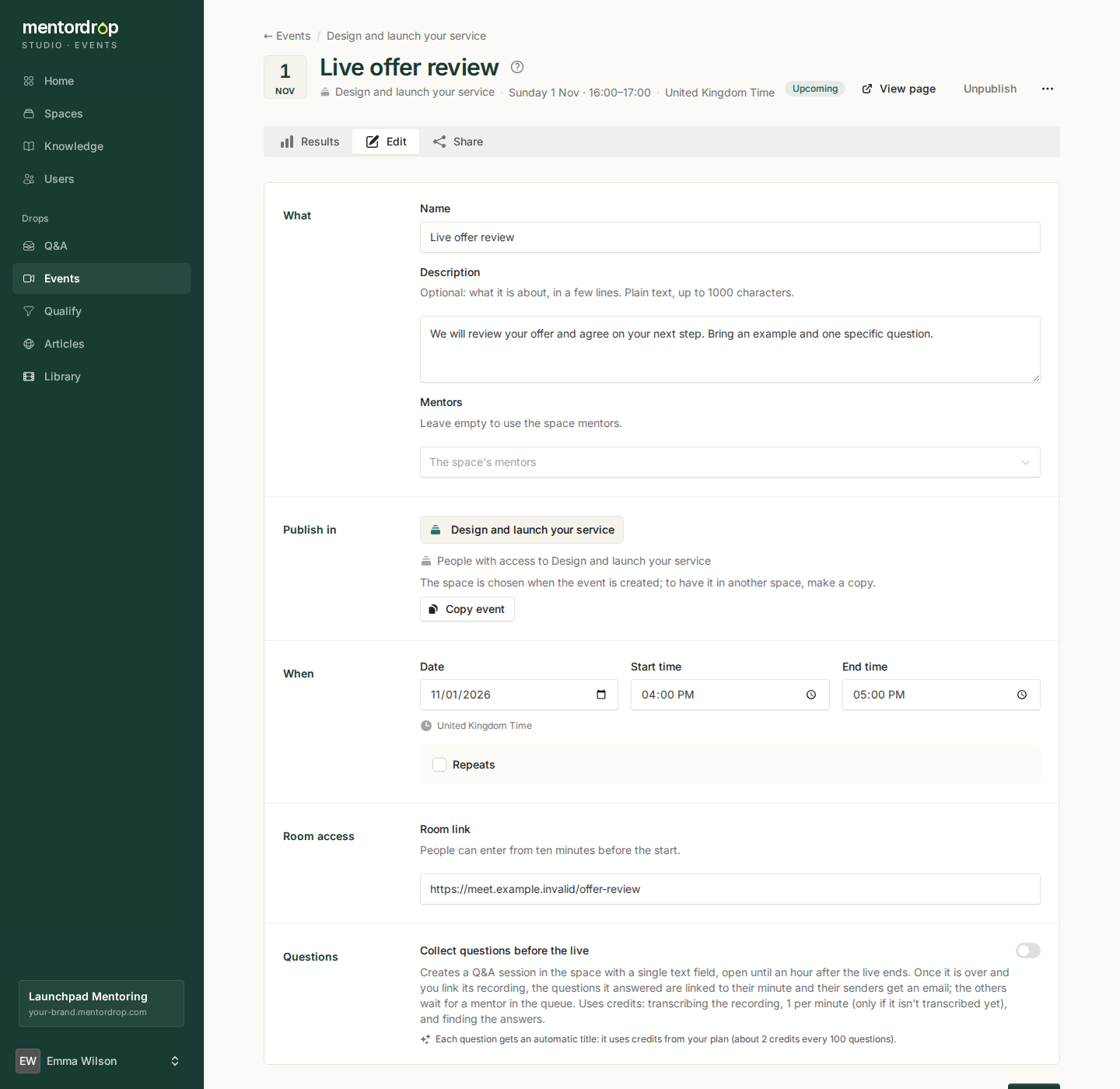
Example: a live offer review in a client space. Names, dates and the room link are fictional.
- Write the name and an optional description, and select the mentors to display.
- Enter the date, start time and end time. Check the time zone shown in Studio.
- For a series, select Repeats and choose weekly, every two weeks or monthly. Review the repeating days and times.
- Add the Room link. You can save a draft without it; publishing needs a valid room link.
- Create the draft, review the page and press Publish. Saving a draft does not make it public.
You can pick mentors from the space's team. In a space that is not open, leaving the selection empty uses its mentors; in an open space it shows nobody. A presenter displayed on the page does not automatically receive access to a private space.
Clients see Enter the live session from ten minutes before the start until the event ends. Once their support in the space has ended, they can no longer enter new lives of a space that is not open (see support in Offers). The button opens your room in a new tab. The public page does not reveal the room link before entry opens.
In a members-only space, each client can press I'm going on the event page or on its agenda for the next live, until it starts; it is never needed to enter. They then see You're signed up., that live's calendar and I'm not going. Results shows how many signed up for each live, not who.
3. Share the event or the agenda
Use Share on the event page for its link, QR code or widget. To share every date of an open space together, use Share in the Events list and choose its agenda. Clients can switch between the list and month view.
Whoever may attend (the people of a members-only space, your team and, in an open space, anyone, after registering if the event asks for email) sees Add to your calendar on the event page before a one-off and for as long as a series runs: Google Calendar, Outlook and Download .ics (Apple, Outlook). A series goes in as a series, with its repeat and local time (Outlook on the web adds only the next live, and for a series its button says Outlook (next live only); the .ics file carries the series). The saved entry leads back to the event page, never to the room, so access still follows your settings.
On the space's agenda, whoever sees its events gets Subscribe to the calendar (Google Calendar, Apple Calendar or Outlook, or Copy link): their calendar receives every published event of the space and updates itself, so lives you add or change later show up without them doing anything (a change can take a few hours). In a members-only space the link is personal and stops showing events once that person loses access; an open space's is public, like its agenda.
Optional registration by email
On an event of an open space, you can enable Ask for name and email before entering, under Ask for email. The page's button reads Subscribe and save my spot before the live and Subscribe to enter while it runs. While an event asks for it, its space cannot be closed. First set your privacy policy in Settings › Integrations; connecting Kit is optional. Your team never registers: signed in, they see the way into the live session straight away.
Registration subscribes the person to your emails, as explained on the form, the same in every country. MentorDrop keeps every registration. Someone who already left their email entering the open space registers with one click (Register as their email). With Kit connected, registrations also go to your list, with separate tags for registration and entry to the live room: use them for your confirmation and reminder automations. Someone who had unsubscribed is back on your list only after confirming by email: Kit asks them to if you choose a Confirmation form for returning subscribers in Settings › Integrations (or if the event adds them to a Kit form), and the page asks them to check their email. Without that form they still register, but stay unsubscribed. Without Kit, or when a registration does not reach your list, you download it in Results to import it; connecting Kit later does not send earlier registrations. MentorDrop does not send event registration confirmations or reminders. This is separate from the notification sent when a Q&A submission is answered.
With Kit connected you can also add the contact to another Kit tag or form; a form follows its double opt-in setting. Unsubscribing from your emails does not cancel event registration. Registration is remembered in that browser; use Not me on a shared device.
4. Add the recording
On the event's Results tab, go to Recording (or Recordings for a series) and, on the correct live date, press Choose a video to use one from Library or Upload video to upload it right there; it plays once it is ready. Each date in a series can have its own recording page.
- In a space, everyone with access to the space can watch its recording.
- In an open space, choose Everyone, Only people who attended, or Only people who registered when email registration is enabled.
- Registration and attendance may be recognized from the signed-in person or the browser used. An event with email capture can also check the email used against the event's registrations.
The recording plays on the live's page and uses the event's access rules. You do not need to create a public Library video link to publish it here. To let clients find it with the course content, add the same video to a library of the space, for example "Masterclass".
Collect questions and link answers to the recording
Any event can enable Collect questions before the live. MentorDrop creates a Q&A session with one text field in its space; questions are sent from the event's own page. In an open space, sending one requires entering the space. For a one-off event it accepts submissions until an hour after the live ends; for a series, while the series runs. That session is edited like any other (form, the sender's recording, attachments and how answers work); the event sets its schedule and its answers are always shared. Each question gets an automatic title, which uses credits (about 2 per 100 questions). Turning the option off stops new questions; those already sent stay.
After the live, select its recording. MentorDrop transcribes it (1 credit per minute, unless already transcribed) and, also with credits, looks for the moment that answers each pending submission. A matched answer links to that minute, and its sender receives an email. For a series, pending submissions can be matched against each date's recording.
This requires a usable recording and available processing. A submission without a matching answer waits for a mentor in the queue on a one-off event, or for the next live in a series. Changing the video withdraws the answers found in it and looks for them again in the new one. Review the linked answers; automatic matching can make mistakes.
Results and changes
Results says for each date how many people entered: those who opened the room, once each however many devices they use. At an event of an open space that does not ask for email, someone who enters without signing in counts once per browser. It does not measure how long they stayed or prove attendance inside Zoom or Meet, and your team is not counted. When the event asks for email, Registrations says how many people registered and, for a live that is over, how many entered; for a series you choose the live. If some registrations did not reach your list (also when none is connected), you download the CSV with those registrations right there, to import it.
Unpublish removes the event from public access. Archive event, in the event's menu, hides it from your clients; its link, QR code and widget come back when you unarchive it. Delete event cannot be undone. Copy event creates a new draft with its name, description, schedule, room, mentors and email capture; it does not copy results or recordings. Check the audience and publish the copy when ready.