Overview
How MentorDrop works
Last reviewed: · MentorDrop
MentorDrop gives mentors, experts and coaches six tools for working with clients. Start with the one that solves your immediate need; connect the others when useful. You can share hosted links or add content to your existing website or platform.
Choose your starting point
| You want to… | Use | First step |
|---|---|---|
| Answer client questions | Q&A | Create a space and session, then configure its form and answer settings. |
| Deliver videos, texts and materials | Library | Upload videos or create a piece, put them in a library and choose it in a space. |
| Run live meetings | Events | Create an event in a space, with its date and your external meeting-room link. |
| Assess people before a booking | Qualify | Build an interview, define its checks and test the outcomes. |
| Turn your expertise into website content | Articles | Choose a session, a library or a Knowledge Room as the source of the articles. |
| Sell access to a program | Offers | Connect Stripe and create an offer for private spaces. |
The dedicated guides cover Library, Events, Qualify, Articles and Offers. Below is the complete Q&A journey.
Quick answer
- Spaces group client access. They can contain Q&A sessions, libraries and events. A public video or Qualify interview can also work independently.
- Your team uses Studio; clients use your client pages. Administrators configure the account and mentors work in their assigned spaces.
- Your account starts in the language you signed up in. Switch between English and Spanish in Settings › General; your own content is not translated automatically.
- Each Q&A session has its own form, availability, limits and privacy. Reply by text or with the recording and attachment options you enable.
- Knowledge Rooms reuse your team's answers in Q&A, Qualify and Articles. What is put together automatically needs relevant source material and can contain errors.
The parts: account, spaces and sessions
| Part | What it is |
|---|---|
| Account | Your account: your team (admins and mentors), your spaces and your clients. |
| Space | A course, cohort, program, membership or mastermind. It is the access boundary: it answers "what does this person have access to?". |
| Session | The place where submissions are sent and you answer. It belongs to one space and has its own form, dates, submissions and answers. Its mentors are assigned through the space. |
| Knowledge room | A set of sessions and libraries whose answers and videos Q&A, Qualify and Articles can reuse. |
For Q&A, the starting path is: create a space, add a session, set up the form and schedule, assign mentors to the space, and share the space with a link or embed it on your site.
Getting started: from space to answer
You need an account with a verified email and administrator permissions. Start with a test account to check the complete experience.
- Create a space in Studio › Spaces. Our example is “Design and launch your service.” The space groups the sessions for that program; add to it the mentors who answer them (admins always can).
- Create a session inside the space. We call it “Implementation questions.” Configure its form, dates or schedule and whether answers are shared. Check that Active session and Accept submissions are on.
- Give the client access. In Studio › Users, add or select the person and grant access to the space. For a private space, sharing a link does not grant access by itself. In an open space, clients can join with their name and email unless their access has been revoked. You can also sell access to the space with a Stripe account in your name: buyers get it once their payment is confirmed.
- Open Spaces › Your space › Share. Copy the widget for your website or the space link. Open the link in a separate browser, without your administrator session.
- Make a test submission. Sign in with the test account's email and the code it receives, complete the form and submit. Include context, the specific problem and what you have already tried.
- Reply from Studio › Q&A › Submissions. Open the pending case, read the context and answer by text or voice. Then check the thread in the other browser.
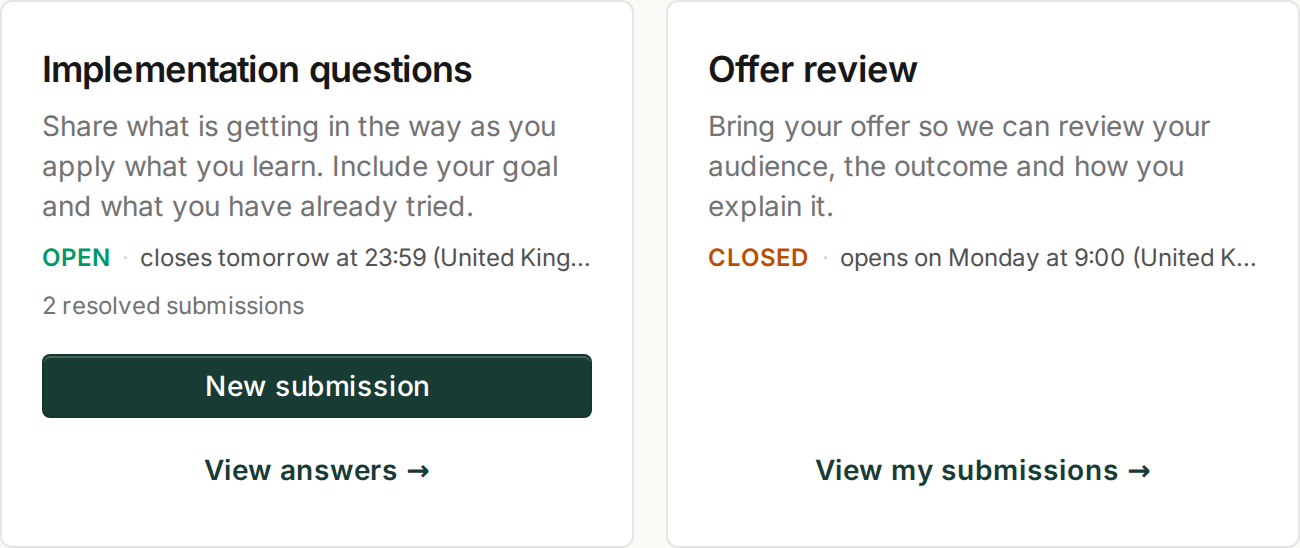
Fictional example: one space contains a recurring question session and a one-off offer review.
How to write a useful question
Explain what you want to achieve, what is happening and what you have tried. “How do I sell more?” gives little context. “When I present my service, the customer asks about price before understanding the outcome. How would you change the presentation?” makes a specific answer possible.
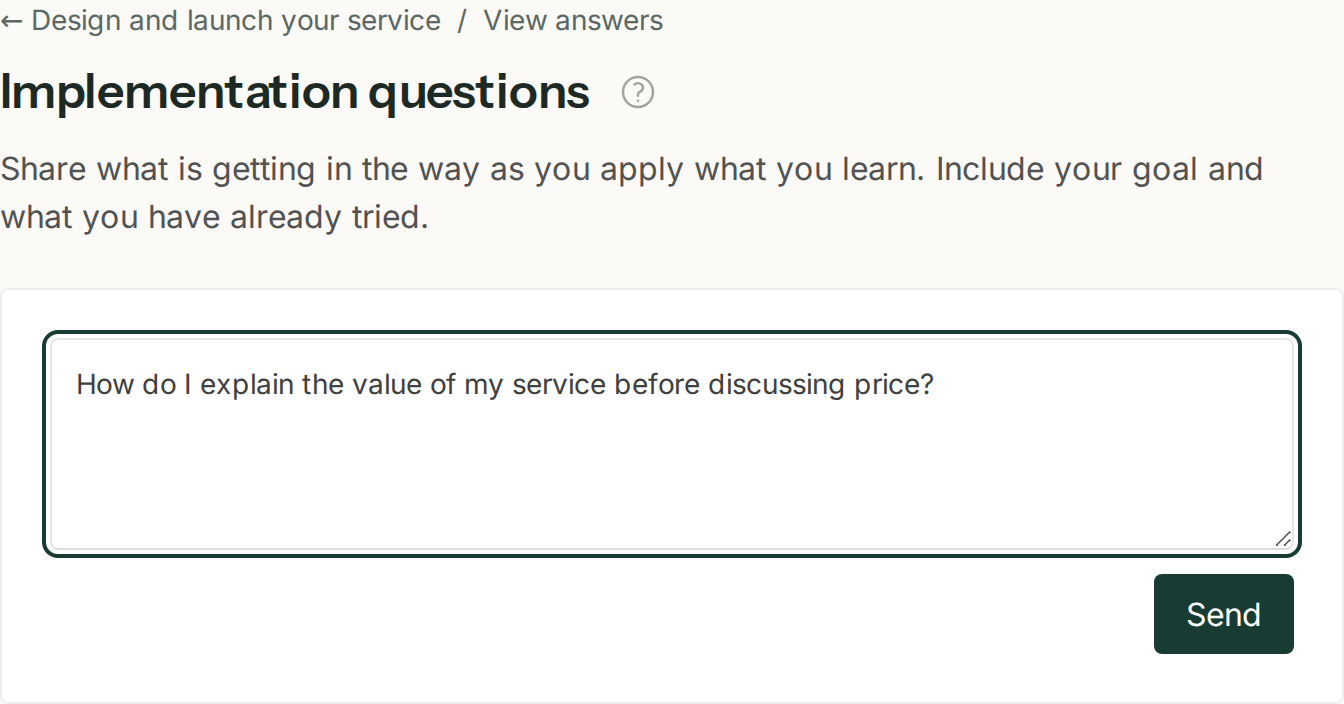
The submission form belongs to a session. Its fields and audio options depend on the session settings.
One-off and recurring sessions
You can run a one-off session around a specific topic or a recurring session for the whole course. For each session you decide:
- the opening and closing dates;
- the submission limits, for example one per account;
- which answers the group can see.
Assign mentors to the space to let them answer its sessions; admins can answer in every space. If you disable submissions, nobody can ask in that session, but published answers stay visible.
How a submission is made
- The sender opens the space link or widget and enters the session that accepts submissions.
- They enter their email and receive a one-time code. There is no password to create or remember; MentorDrop can remember the browser.
- They only get in with active access to the space. You decide who has access from your account.
- They fill in the session form and send it.
If the session has similar answers enabled, MentorDrop checks at that moment whether your mentors already answered something similar and, if so, shows the sender a provisional answer built from it.
How you reply
Submissions that need a mentor’s attention appear in the Studio inbox: you see who asked, which course they are in, and the full thread. From there, admins and authorized mentors can work on them. If a mentor already owns the case, that assignment is respected. You can:
- Reply by voice, in your own voice, right from the browser. Sometimes 90 seconds is all you need.
- Reply in writing when a short explanation, a few steps or a useful link will do.
- Record video or share attachments when enabled for mentors in the session: show a camera or screen explanation, or add supporting photos and files.
The sender gets notified when there is an answer. Writing again after it depends on two session settings, both off by default: a quick follow-up window (one message within some hours of the first answer) and later follow-ups (never, once a day, week or month after the mentor’s last reply, or always). The case then comes back to its mentor, or to the queue, marked with the sender's name, for example “Maya wrote again”, and its answer stays published.
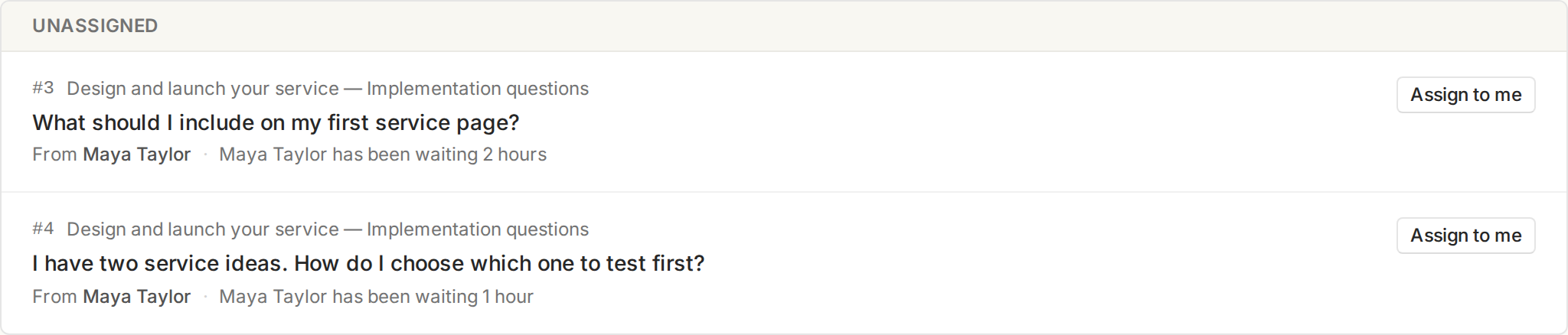
The inbox gathers cases that need attention. Open a case to read its thread and work according to your team’s assignments.
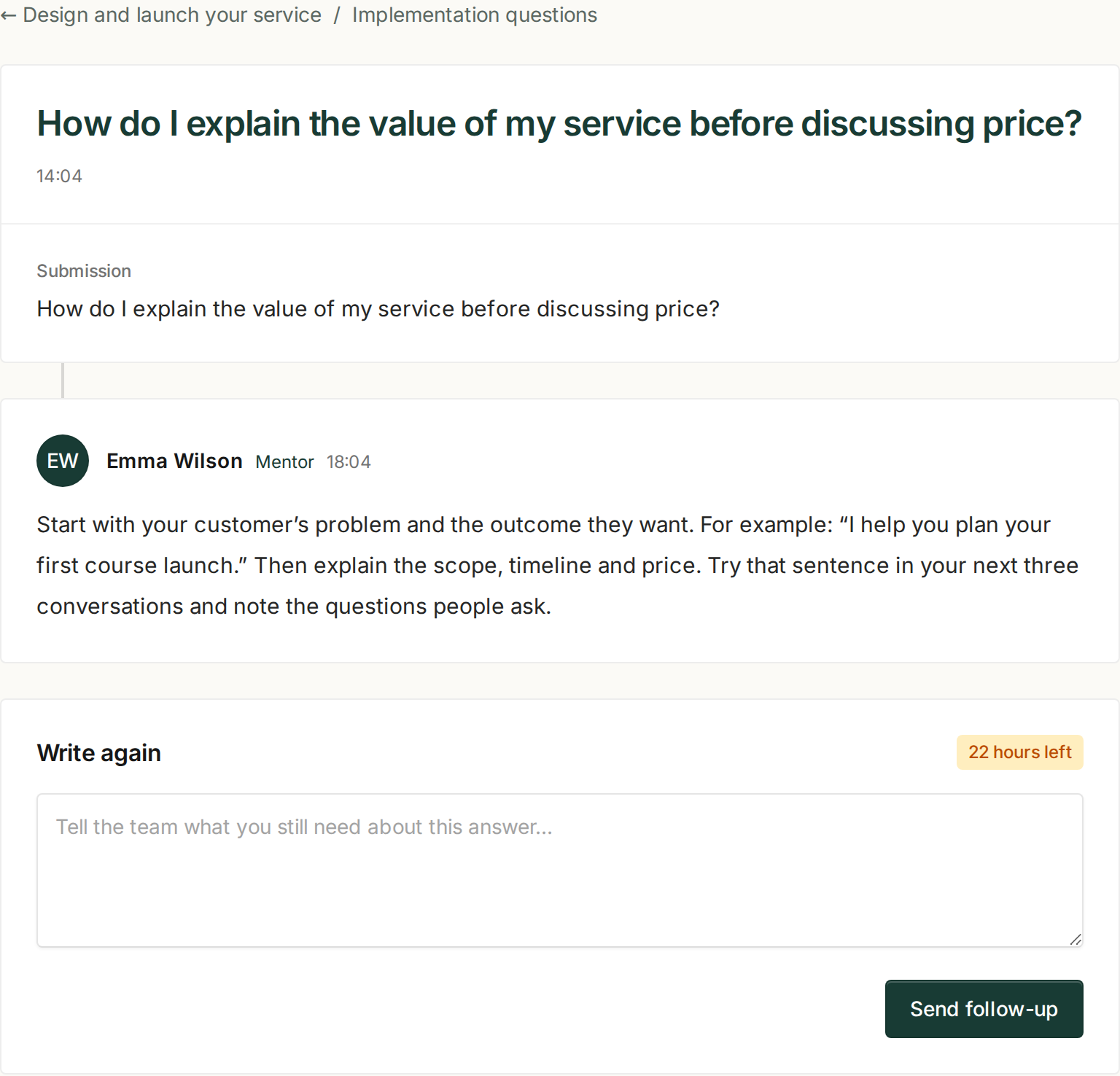
What Maya Taylor sees after the reply. This example uses text; the session can also allow voice replies.
What the group sees
Visibility is a session setting, and a new session starts with public answers on. With them, anyone with access to the space can read answered cases that are not marked private, and your team can make each submission public or private. Without them, each account sees only its own cases and every submission is private. A space's submissions are seen by the admins and that space's mentors; a mentor who is not on the space does not see it. “Public” means visible to whoever has access to the space, not published on the open Internet.
Before opening a session, check this setting and, in the space, whether each submission shows who sent it. A private submission stays between whoever sent it, the admins and the space's mentors.
People who only read answers do not count toward your plan; we explain that in Pricing and plan limits.
Similar answers
For each session you choose what happens when a submission arrives:
| Option | What happens |
|---|---|
| Only a mentor answers | The base behavior: the submission enters the inbox and waits for an answer. |
| Show similar answers, then a mentor answers too | If your mentors already answered something similar, the sender sees a provisional answer right away. The submission still reaches a mentor and stays open until they answer. |
A short provisional answer is written automatically from real answers given by your team: by default, from the same session; if you prefer, from a knowledge room that gathers the answers of several sessions. It can also cite transcribed videos from your space's libraries (and the room's), with a link to the minute, but only to a sender who can watch them. It is instructed to use only those sources and to cite them, but it can still get something wrong: the sender sees that it was put together automatically and may contain errors, and can still ask a mentor. When your earlier answers do not answer the submission, nothing is shown.
Your plan's credits govern audio processing: one transcribed minute, one credit. Each similar answer also uses credits, at what it really costs to write. If they run out, submissions keep arriving and you keep replying; new recordings wait until credits come in.
With or without a platform
MentorDrop works on its own, from a shareable link, and also inside Hotmart, Kajabi, Teachable, Thinkific, Moodle, WordPress, Circle or your own website. Your courses, clients, content, community and payments stay where they are. If you switch platforms, your submissions and answers move with you. A Library video can also have a public page of its own, with its piece's text and materials, an optional email gate for your list, an end date and a call to action. Details in Put MentorDrop on your platform.
What MentorDrop does not do
- Library hosts videos, texts and worksheets organized into sections, tracks progress and lets clients resume where they left off. It does not offer certificates or graded quizzes.
- It is not a forum or a community.
- It is not a general chatbot: its automatic answers (Q&A's similar answers and the answers to questions on a library's pieces) are built only from what your team already answered and from your videos, and they say they may contain errors.
- It has no coupons, funnels or sales pages. On a paid plan you can sell access to your Spaces with a Stripe account in your name.