Q&A
Set up recurring sessions and submission limits
Last reviewed: · MentorDrop
A recurring session opens its form on a repeating schedule. Submission limits control how much each account can submit. These settings do different jobs: opening the form does not remove its limits, and activating a session does not mean it accepts submissions at every hour.
Choose the right schedule
| Mode | When it fits |
|---|---|
| Always open | Submissions can be sent at any time while the session is active and accepts submissions. |
| One time | A review with specific opening and closing dates. |
| Recurring | A window that repeats weekly, every two weeks or monthly. |
Your account has its own time zone. Check Settings › General before entering times. Do not assume it matches the sender's computer.
Configure a recurring window
You need administrator permissions. Open the space, enter the session and select the Session tab.
- Activate the session and Accept submissions.
- Under Frequency, choose Recurring.
- Choose the recurrence frequency. For a two-week cycle, set the reference date; for a monthly cycle, choose the week of the month.
- Select the start day, end day, opening time and closing time.
- Save the session and check the schedule shown in the session.
For example, a course might receive questions Monday through Friday and reserve weekends for reading. This is a team decision, not a required product setting.
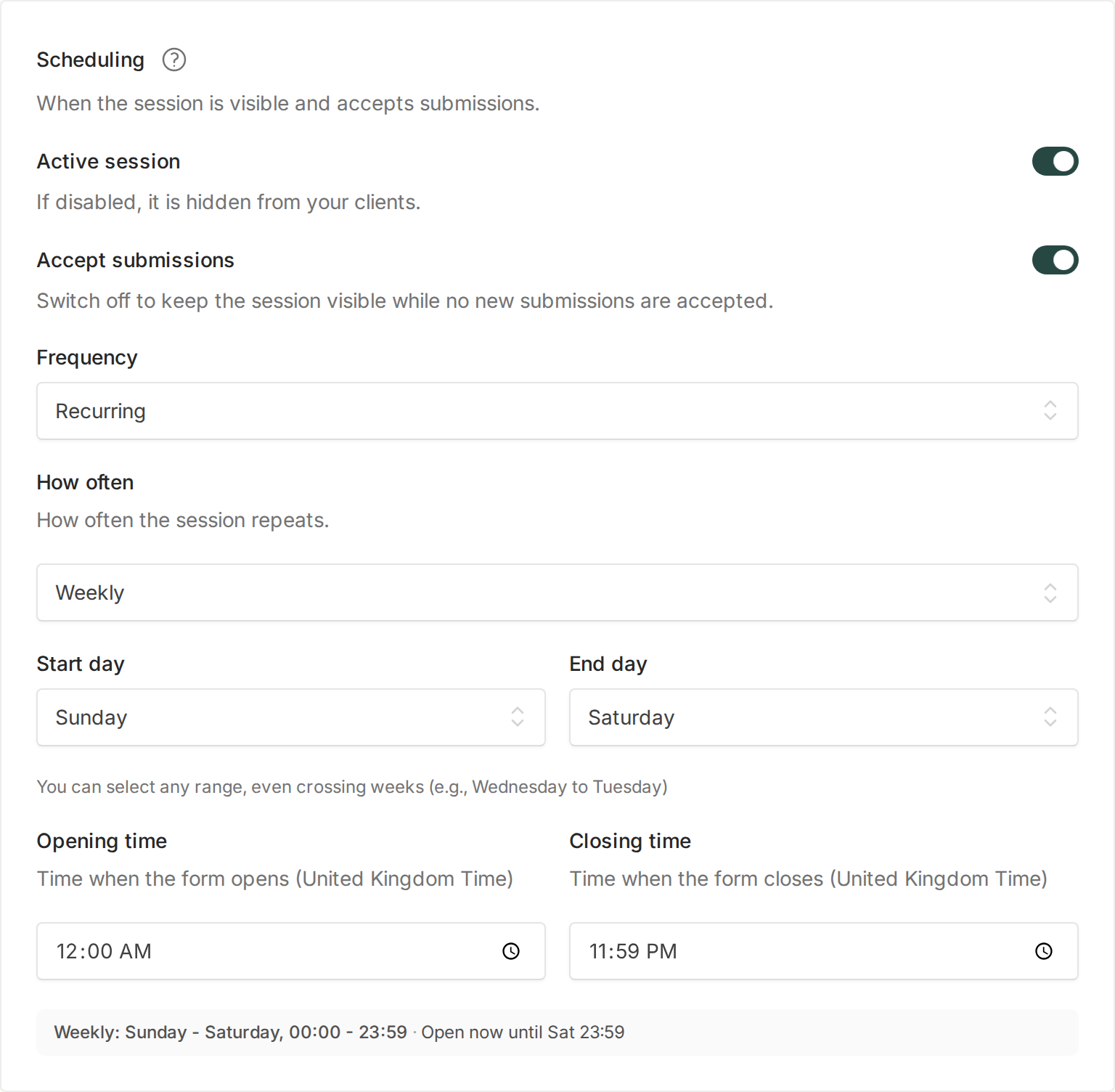
The fictional mentoring business in the screenshot uses an all-week window. Adapt the days and times to your service.
Questions linked to a live event
If you enable question collection for a space event in Events, its linked Q&A session follows the event's dates. Change that schedule from the event, rather than setting an independent recurring window in the session. The event can repeat and have a recording for each date. See Events.
Set submission limits per account
Under Answers › Submission limits there are two limits: at most N submissions per day, week, month or in total, and at most N submissions open at once. A blank limit does not apply. "1 submission in total" gives each account a single submission in the session. When you set both, both must be met to make another submission.
One starting example is three submissions a week and one open at a time. Use it only if it matches what you sold: the open limit can prevent another submission while an earlier one remains pending.
These limits belong to the session. Your plan does not limit how many clients ask: it counts only your team (admins and mentors). See Pricing and plan limits.
Decide the response time and how follow-up works
Under Mentors, review the response time you communicate; the admins and the space's mentors answer. Under Answers, configure the quick follow-up window and how often the sender can write again later. Each option serves a different purpose: do not promise unlimited follow-up when you have set restrictions.
Voice in the initial submission is configured through voice fields under Form. The recording controls under Answers apply to thread replies and distinguish senders from mentors. Where enabled, replies can include camera or screen video, photos and files. Transcription also has its own options.
Test before sharing
- Sign in with a test account that has space access and check the open or closed status and next transition.
- Make a submission and check whether the limits allow another.
- Check which answers remain visible outside the submission window.
- To pause new submissions while keeping the session visible, disable them. Deactivating the session hides it.
If something does not match your expectations, review Active session, Accept submissions, the schedule, space access and limits separately. You do not need to duplicate the session every week: recurrence keeps submissions and answers in the same place.